
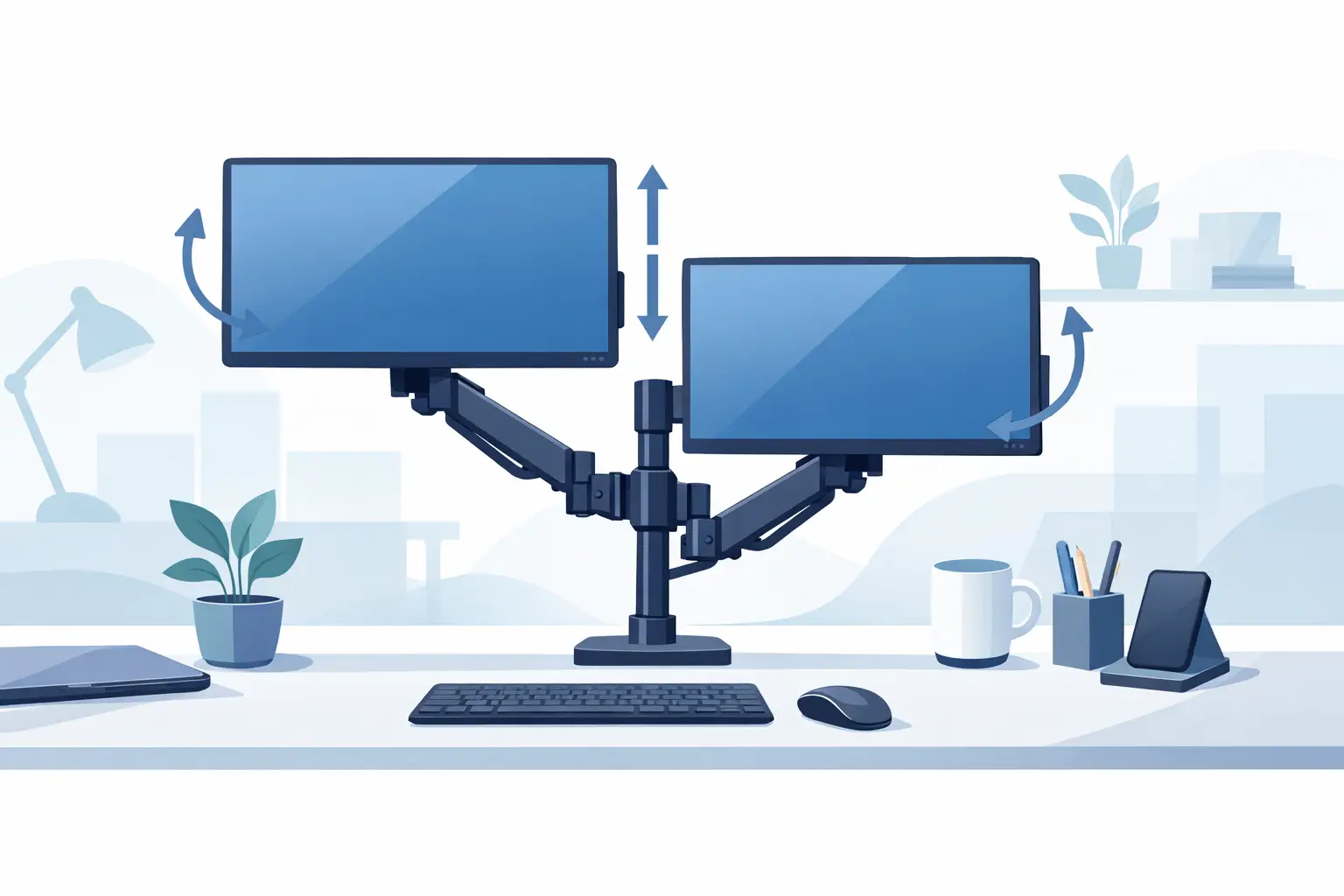
A monitor that sits too low can turn an ordinary workday into hours of looking down, leaning forward, and constantly shifting in your chair. Adjustable monitor stands give employees, remote professionals, and shared-office users a practical way to bring screens closer to a comfortable viewing height without replacing an entire desk setup.
The right stand also does more than raise a display. It can clear valuable desk space, keep cables more manageable, and make a workstation look ready for work. Whether you are furnishing one home office or standardizing equipment across a small business, choosing the right option starts with understanding how the desk, monitor, and person using it work together.
Why adjustable monitor stands make a difference
A monitor should generally sit directly in front of the user, with the top portion of the screen around eye level or slightly below. That position helps reduce the need to bend the neck downward or lift the chin to see the screen. There is no single height that works for everyone, especially in shared workspaces, which is why adjustability matters.
Fixed risers can be useful when one person uses one desk and already knows the exact height they need. Adjustable stands are the more flexible choice when users vary in height, chairs change, desks are shared, or a workstation may be rearranged later. A stand that adjusts in height, tilt, swivel, or rotation gives the user more control without adding complexity to the desk.
For office managers, the benefit is consistency. Instead of asking employees to improvise with books, paper reams, or boxes, you can provide a purpose-built support that keeps screens stable and work areas more professional. For remote workers, even a modest adjustment can make a kitchen table or compact desk more workable during long days.
Start with the type of stand your workspace needs
Not every adjustable monitor stand uses the same design. The best choice depends on desk construction, available space, monitor size, and how often the display position needs to change.
Desktop risers
Desktop risers sit directly on the work surface and usually provide a set of adjustable height positions. They are simple to install, easy to move, and a good fit for workstations where drilling or clamping is not practical. Many include a platform large enough for one monitor, while wider models can support two screens or hold a laptop beside a monitor.
This style works well for reception desks, temporary work areas, home offices, and businesses that need a straightforward upgrade with minimal setup. The trade-off is that a riser takes up desk surface area. Measure the desktop first, especially if space is already limited by a keyboard, phone, printer, or paperwork.
Clamp-mounted monitor arms
Clamp-mounted arms attach to the rear or side edge of a desk. They can raise the monitor above the work surface and often allow height, tilt, swivel, and side-to-side adjustments. Because the screen is elevated, the desk below is left more open for documents, a docking station, or other daily essentials.
These stands are a strong choice for users who frequently change screen position or need a clean, compact workstation. Before buying, check that the desktop has a suitable edge for the clamp and enough thickness for the mounting hardware. Glass, hollow-core, unusually thin, or damaged desks may require a different mounting method.
Grommet-mounted stands
Grommet-mounted stands use an existing desk hole, often one intended for cable management, to create a secure mounting point. They can provide a clean appearance and a very stable hold. They are especially useful for permanent workstations and offices that want fewer clamps along the desk edge.
This option requires the right hole placement and diameter. If the desk does not already have a usable grommet opening, installation may involve modifying the surface. That makes it less convenient for temporary setups but worthwhile for a planned office layout.
Freestanding and dual-monitor models
Freestanding stands use a weighted base rather than a desk clamp or grommet. They are useful when mounting options are limited, but the base will occupy more room than an arm mounted at the desk edge. Dual-monitor stands support two displays from one base or mounting point, helping users keep screens aligned and reducing clutter from separate stands.
For dual-screen workstations, make sure each arm supports the weight of each monitor individually. A stand may advertise dual-monitor compatibility while still having specific limits for screen size, weight, or curve.
Check compatibility before you buy
The most common purchasing mistake is choosing a stand based only on how it looks. A monitor stand needs to match the display and desk it will support. Start with the monitor’s weight without its original base, then compare it with the stand’s stated capacity. Stay within the listed limit rather than assuming a heavier monitor will be fine because the stand appears sturdy.
Next, look for VESA compatibility. VESA is the standardized mounting pattern found on the back of many monitors. Common patterns include 75 x 75 mm and 100 x 100 mm. If a monitor does not have VESA mounting holes, a desktop riser may be the easier choice, or you may need a compatible adapter.
Screen size matters, but it is not the whole story. A light 32-inch display may work with an arm that cannot support a heavier 27-inch model. Curved monitors can also require more clearance when tilted or rotated. Check the stand’s range of motion against the monitor’s dimensions and the surrounding wall, shelf, or cubicle panel.
For clamp-mounted options, confirm the desk thickness and inspect the underside of the desktop. Support beams, drawers, cable trays, and uneven surfaces can interfere with a clamp. Taking these measurements before ordering saves time and helps prevent returns.
Choose adjustments that fit daily work
More movement is not always better. A workstation used by one person may only need height adjustment and a small tilt range. A shared desk, customer service station, or design workspace may benefit from full movement that lets each user position the screen quickly.
Height adjustment is the main feature for most buyers. Tilt helps reduce glare and supports comfortable viewing when the desk height cannot change. Swivel is useful when someone needs to turn the screen toward a coworker or customer. Rotation allows a compatible monitor to move between landscape and portrait orientation, which can help with long documents, coding, scheduling tools, and vertical content review.
Gas-spring arms are designed for frequent, smooth repositioning and are a good option for active multi-user stations. Manual-adjust arms can cost less and are perfectly suitable when changes are occasional. The best value comes from buying the level of movement your team will actually use.
Plan for desk space, cables, and power
A monitor stand can make a desk feel more organized, but only if the surrounding setup is planned at the same time. Consider where the keyboard, laptop, phone, paperwork, and power connections will sit after the monitor is raised. A taller screen position may also call for a keyboard tray or chair adjustment to keep the user in a comfortable posture.
Built-in cable channels can guide power and display cables down the arm or stand, helping prevent loose cords from spreading across the desktop. They do not eliminate the need for sensible cable routing, especially with docking stations and multiple monitors, but they make day-to-day cleaning easier and give the workstation a neater finish.
If the desk is against a wall, leave enough space for the monitor and arm to move without pushing cables into a tight bend. For offices using surge protectors or desk power strips, keep power access within reach without placing cords where employees walk or roll chairs.
Make a smarter purchase for your office
When purchasing for several employees, standardizing on one or two compatible stand styles can simplify setup, replacements, and future orders. Still, do not force every role into the same product. A front-desk workstation, an accounting desk with dual displays, and a remote employee’s compact home desk may need different solutions.
Focus on the basics first: monitor capacity, mounting compatibility, desk fit, and the adjustments the user needs. Then compare practical details such as cable management, finish, installation time, and available workspace. JASI Solution helps practical buyers source workplace equipment across everyday office needs, making it easier to keep purchasing organized.
A good monitor stand should fade into the background once it is installed. The screen stays where it should, the desk has room to work, and the person at the workstation can focus on the task instead of constantly readjusting their position.